Hello every new users,
This post mainly discusses some tutorials related to the functions of the forum homepage, with corresponding function pictures attached.
I hope everyone can collide with sparks of thinking on the forum of the physics laboratory, and I also wish everyone a happy chat on the forum of the physics laboratory!
So, let’s get started directly.
————————————————————
Ⅰ.Telescopic menu
 systolic function
The appearance is as shown in the above picture.
After clicking, you can zoom in and out on the left menu bar.
This can simplify the panel and eliminate some messages that you don’t want to manage temporarily.

————————————————————
Ⅱ.Call out chat interface
 Small window chat
The appearance is as shown in the above picture. After clicking, a small window will appear as shown in the picture, which can generally be used for split screen chatting.
I arranged all the interactive content in the small window from top to bottom and found the following icons that can be interacted with.
_ Used to hide small window chat
After clicking, the small window chat will shrink to the bottom function bar
_ Used to enlarge the small window
After clicking, it will directly redirect to the chat channel.
_ Used to close small window chat
After clicking, the small window chat will be closed.
_ Unknown function
Pending testing……
_ Used to set up follow chats
After clicking, you will enter the settings interface for the chat channel.
Here, you can consider whether to keep this topic channel based on your level of attention to it.
If you don’t want to join a certain channel, you can click to leave.
But please note that after leaving, you cannot return to the group chat.
_ The specific chat channel for users
This is the chat topic channel, pay attention! If you exit! you may not be able to return to the original channel.
_ Used to add a new group chat
Belonging to a personal channel, your chat allows up to twenty people to participate simultaneously.


————————————————————
Ⅲ.Keyword search

The appearance is as shown in the above picture. After clicking, a search bar will be displayed, which is used to search for posts within the forum.

I arranged the interactive content in the search bar in a top-down order, and found the following interactive icons.
_
 Used for more detailed searches
After clicking, you will enter a more detailed search mode with advanced filters.
_ Some system recommendations
I’m not sure about the working mode at the moment, waiting for the builder to test
_ Used to clear history
After clicking, you can clear all your search traces.
_ User’s History
Your previous search records can be searched again by clicking on the corresponding entry.


————————————————————
Ⅳ.Function Bar

The appearance is roughly as shown in the above picture, and different user images may vary. Clicking on it will expand a status bar that is roughly as follows, used for quickly receiving information and notifications.

I arranged the interactive content in the status bar from top to bottom and found the following icons for interaction.
_
 Information content
More detailed information content, click to jump to the corresponding information page.
_
 Notifications
All messages related to you.
_ Received likes
Other users like your behavior.
_ Private messages and system notifications
This contains private message information related to you, as well as some system notifications.
_ Marked bookmarks
This is the bookmark you marked, similar to a convenient hyperlink that allows you to quickly return to your mark.
_ Notification when @ by others
When you are mentioned by other users, you will receive messages here.
_ Other notifications
At present, the notification for the achievement wall is within it.
_ Personal homepage
After clicking, some shortcut channels about forum functions will pop up, and by clicking the exit button at the bottom of this column, you will exit your current account.


————————————————————
Ⅴ.Topics

The appearance is as shown in the above picture. After clicking, the homepage will switch to the following module for viewing topics within the forum.
I arranged all the interactive content in this module in a top-down manner and found the following icons for interaction.
_ More detailed search bar
After clicking, you will enter a more detailed search mode with advanced filters.
_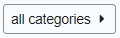 Choose to display topic types
After clicking, a small window below it will pop up.
The magnifying glass inside the small window is useless.
Click on the corresponding type module, and the topics displayed on the homepage will change to the corresponding type.
_
 Select display label type
After clicking, you will enter a more detailed search mode with advanced filters.
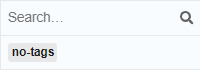
The magnifying glass inside the small window is useless.
At present, there are fewer forum tags, waiting for developers to fill in
_
Clicking on any module allows for quick switching of display content types.
_


————————————————————
Ⅵ.My Psots
————————————————————
Ⅶ.More
————————————————————
Ⅷ.Categories
————————————————————
Ⅸ.Tags
————————————————————
Ⅹ.Messages
————————————————————
Ⅺ.My threads
————————————————————
Ⅻ.Channels
————————————————————
ⅩⅢ.Personal chat
————————————————————
ⅩⅣ.Add custom section
————————————————————
ⅩⅤ.Keyboard Shortcuts
————————————————————
Let’s stop here for now, take a good rest, and finish the rest of the work later……